# Payment gateways (/docs/integrations/payment-gateways)
A gateway is the payment provider that moves the money for a payment. Comecero sends each payment to one of your gateways and keeps the result. You can get paid in two ways:
| | Comecero Express Payments | Your own gateway |
|---|---|---|
| What it is | Payments run by Comecero, paid out to your bank account | Your own account at a provider such as PayPal, Amazon Pay or Braintree |
| Payment methods | Cards, Apple Pay and Google Pay | What your provider supports, such as cards, PayPal or Amazon Pay |
| Setup | A form about your business, owners and bank account | Your provider's API keys |
| Where | **Choose how you get paid** in the dashboard | **Gateways** in the dashboard |
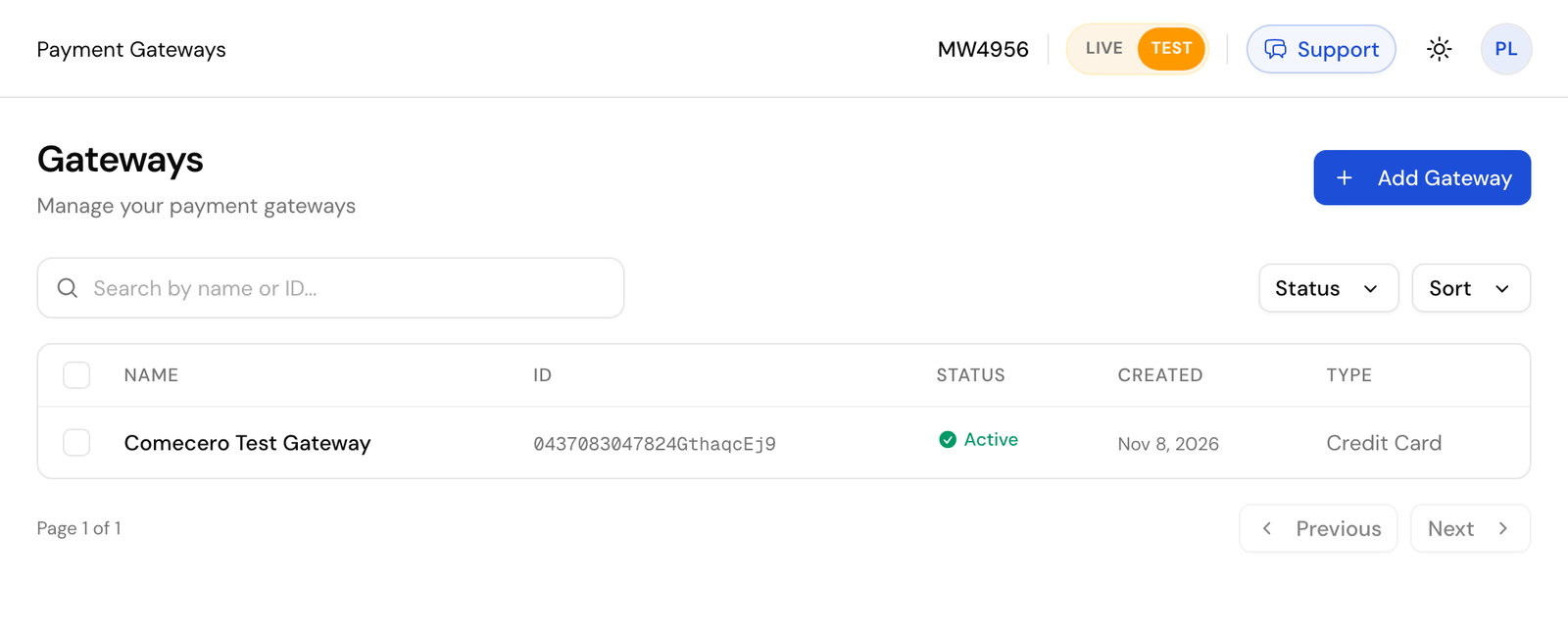
In test mode every account already has the **Comecero Test Gateway**, so you can build and test before you choose.
## Choose how you get paid [#choose-how-you-get-paid]
In the dashboard, click **Choose how you get paid** on the banner at the top. It opens **How do you want to get paid?**
- **Comecero Express Payments**: you go to **Express** and fill in your business, its owners and your bank account, then accept the terms. If something more is needed later, the **Express** page lists it under **Actions Required**. You do not add an Express gateway yourself: it is made for you.
- **Your own gateway**: connect it under **Gateways** as below.
## Connect your own gateway [#connect-your-own-gateway]
### Open Gateways [#open-gateways]
Open **Gateways** and click **Add Gateway**. Use the **LIVE / TEST** switch at the top first: test and live keep their own gateways. In test mode the **Provider** list shows each provider's sandbox, for your provider's test keys.
### Fill in the form [#fill-in-the-form]

| Field | What to enter |
|---|---|
| **Provider** | Your payment provider. The list shows every provider you can connect |
| **Payment Methods** | The methods this gateway takes, such as `credit_card` or `paypal`. Cannot be changed later |
| **Active** | On to use the gateway |
| **Weight** | How often this gateway is picked when more than one can take a payment. See [Gateway weight](/docs/reference/gateway-weight) |
| **Currencies** | The currencies this gateway takes. A payment in another currency never goes to it |
| **Card Types** | For cards: the brands this gateway takes |
| **Gateway Configuration** | Your provider's credentials, such as an API key. The fields change with the provider |
### Save [#save]
Click **Add Gateway**. Comecero checks the credentials with your provider first, so wrong keys are refused at once. Saved credentials stay hidden: click **Show Gateway Configuration** to see them again.
You can do the same with the API: [Get gateway options](/api/gateways/get-gateway-options) lists the providers and the fields each needs, and [Create a gateway](/api/gateways/create-gateway) adds one with a secret token.
```bash title="Request"
curl -X POST https://api.comecero.com/api/v1/gateways \
-H "Authorization: Bearer $COMECERO_TEST_TOKEN" \
-H "Content-Type: application/json" \
-d '{
"provider_id": "stripe",
"payment_method_types": ["credit_card"],
"card_types": ["Visa", "MasterCard", "American Express"],
"currencies": ["USD", "EUR"],
"active": true,
"fields": { "secret_key": "sk_test_..." }
}'
```
- A new gateway is inactive unless you send `"active": true`.
- `provider_id` and `payment_method_types` cannot be changed later. Make a new gateway instead.
- Card brands are written as shown in the options, such as `Visa` and `MasterCard`.
- A live gateway that has payments cannot be deleted. Turn it off instead.
## How Comecero picks a gateway [#how-comecero-picks-a-gateway]
For each payment, Comecero:
1. Takes your active gateways that accept the payment's currency and payment method. For cards, the card brand must be in **Card Types**.
2. Puts them in a random order weighted by **Weight**. A gateway with weight `0` goes last.
3. Sends the payment to the first one.
If that gateway declines the card, Comecero can send the same payment to the next gateway in the list, up to **Maximum Gateway Attempts** under **Settings > Payment** (new accounts start at `2`; set `1` to never try a second gateway). It does not try again after a failed security code or address check, after a timeout, or on Comecero Express Payments. Each try is kept on the payment. See [Gateway weight](/docs/reference/gateway-weight) for more.
A secret or trusted token can also pick the gateway: send `gateway_id` on the payment.
A payment method type only shows in checkout when a gateway takes it in the cart's currency. If PayPal or a currency is missing at checkout, check the gateway's **Payment Methods**, **Currencies** and **Active** switch, then [get the cart options](/api/carts/get-cart-options) to confirm.
## 3-D Secure [#3-d-secure]
3-D Secure is the bank's own check, where the shopper confirms the payment in their banking app. It works on Comecero Express Payments, PayPal cards and Elavon gateways. When the bank asks for it, the payment comes back waiting for the shopper. See [Payments that wait for the shopper](/docs/guides/accept-payments#payments-that-wait-for-the-shopper).
## Test your gateway [#test-your-gateway]
- With the **Comecero Test Gateway**, use the [test cards](/docs/getting-started/create-an-account#test-cards). They also let you test declines, timeouts and failed refunds.
- With your own provider's sandbox gateway, use that provider's test cards.
Before you go live, see the [Going live checklist](/docs/guides/going-live).