

Set up usage billing in the dashboard
Set up usage billing without code. Add a metric, set a price, bill a customer and create a usage key in the dashboard, then check usage as it arrives.
You can set up usage billing in the dashboard, with no code. Your app still has to send the usage, but everything else is a few forms. This guide walks through each screen.
All of it is under Usage Billing in the side menu. The page has five tabs: Overview, Customers, Prices, Metrics and Usage keys.
Before you start
- Usage billing is turned on for your account. Comecero turns it on: ask support. Until then, every Usage Billing page says "Usage billing isn't turned on for your account."
- The customer has a subscription. Usage goes on the subscription's renewal invoice, next to the plan's price, and is charged with the card the customer already uses. Only active subscriptions and subscriptions in a trial can be billed for usage.
- Start in test mode. Turn on Test at the top of the dashboard. Test mode has its own metrics, prices, customers and keys, so you can try everything without charging anyone. Set it up again in live mode when you are ready.
Open the setup checklist
Open Usage Billing. On a new account, the Overview tab shows a checklist called Set up usage billing, with a button for each step. It hides itself once every step is done.
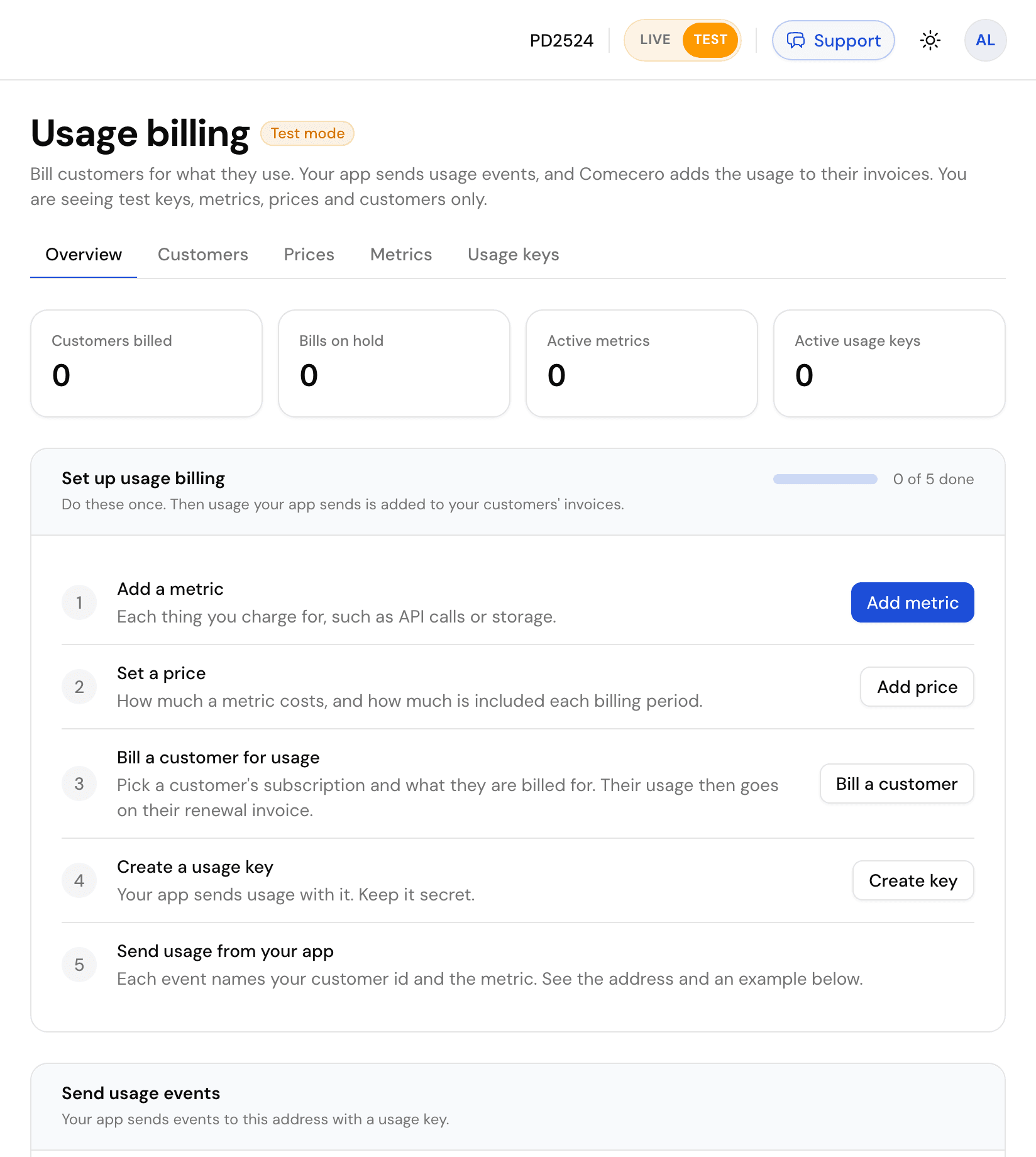
Add a metric
A metric is something you charge for, such as API calls, AI tokens or seats. Click Add metric.
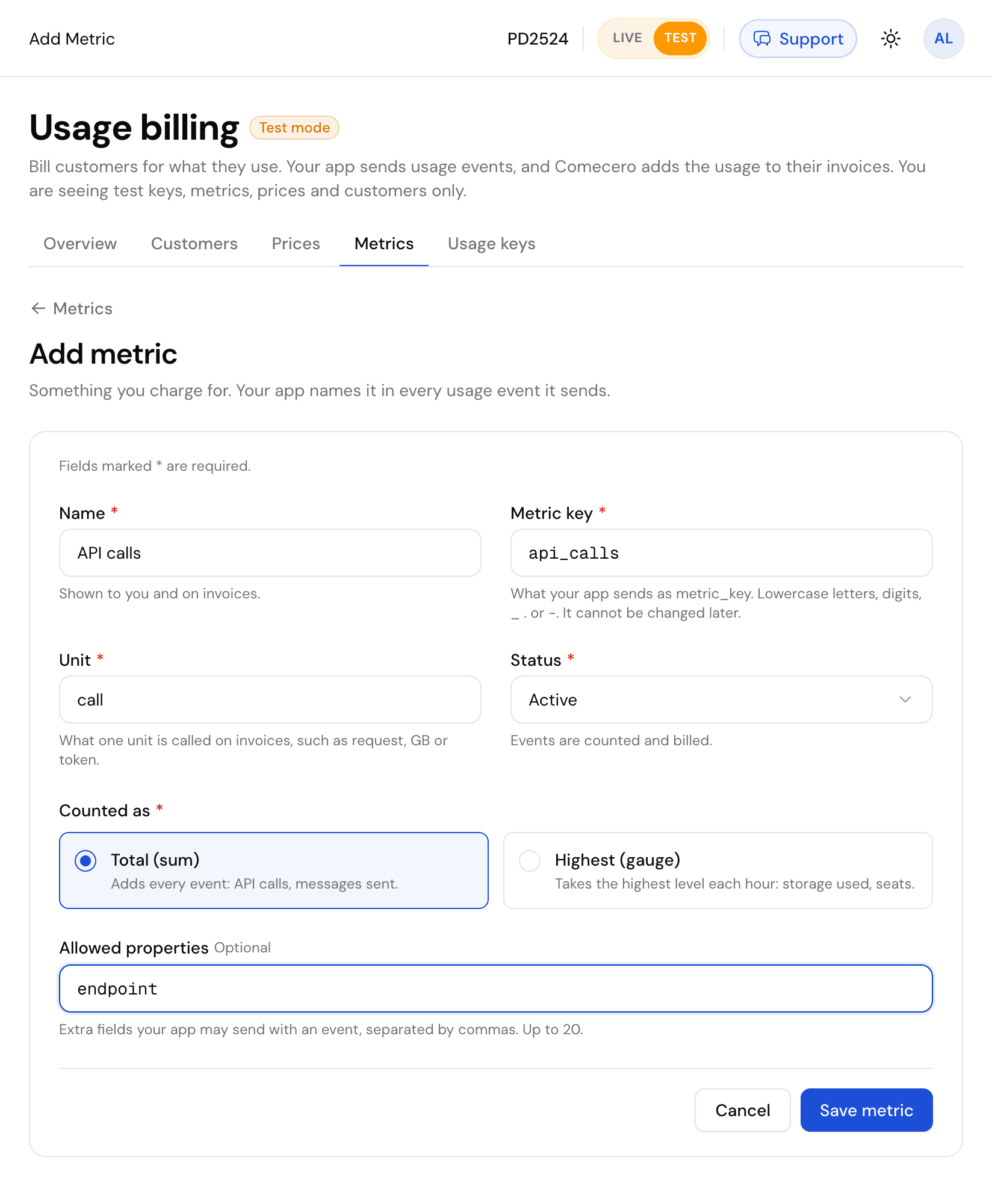
| Field | What to enter |
|---|---|
| Name | What you and your customers see on invoices, such as "API calls". |
| Metric key | The name your app sends with each event, such as api_calls. Lowercase letters, digits, _, . or -. It can't be changed later. |
| Unit | What one unit is called on invoices, such as call, GB or token. |
| Counted as | Total (sum) adds up every event: API calls, messages sent. Highest (gauge) takes the highest level each hour, and the bill uses the highest hour of the period: storage used, seats. This can't change once the metric is in use. |
| Allowed properties | Optional. Extra fields your app may send with an event, such as model or region, separated by commas. Up to 20. |
Click Save metric. A new metric takes a few minutes to reach the usage meter. Until then it shows Updating.
Set a price
Open Prices and click Add price.
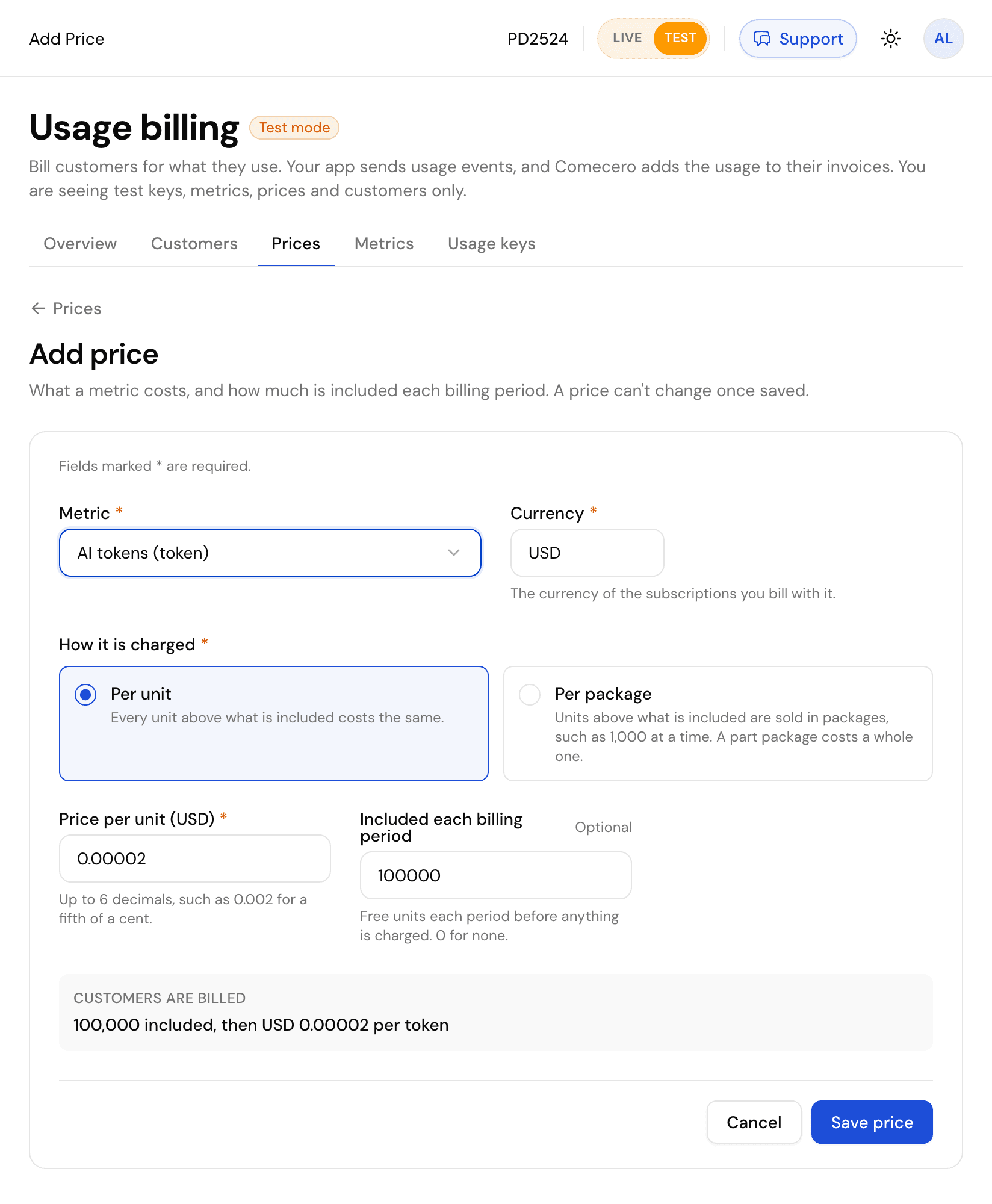
- Pick the Metric.
- Enter the Currency. It must be the currency of the subscriptions you bill with this price.
- Choose How it is charged:
- Per unit: every unit above what is included costs the same.
- Per package: units above what is included are sold in packages, such as 1,000 at a time. A part package costs a whole one.
- Enter the price. Up to 6 decimals, such as
0.002for a fifth of a cent. - Enter what is Included each billing period: free units before anything is charged. Use
0for none.
The box at the bottom shows what customers are billed, for example "100,000 included, then USD 0.00002 per token". Click Save price.
A price can't be changed once it is saved, so bills already made stay right. To charge a different amount, add a new price and move customers to it. Tiered prices, where the price per unit drops as usage grows, are made with the API: see Set up usage billing.
Bill a customer
Open Customers and click Bill a customer.
First, choose the subscription. The list shows live subscriptions, newest first. Search by customer name, or by the exact email or subscription id. Then fill in what they are billed for:
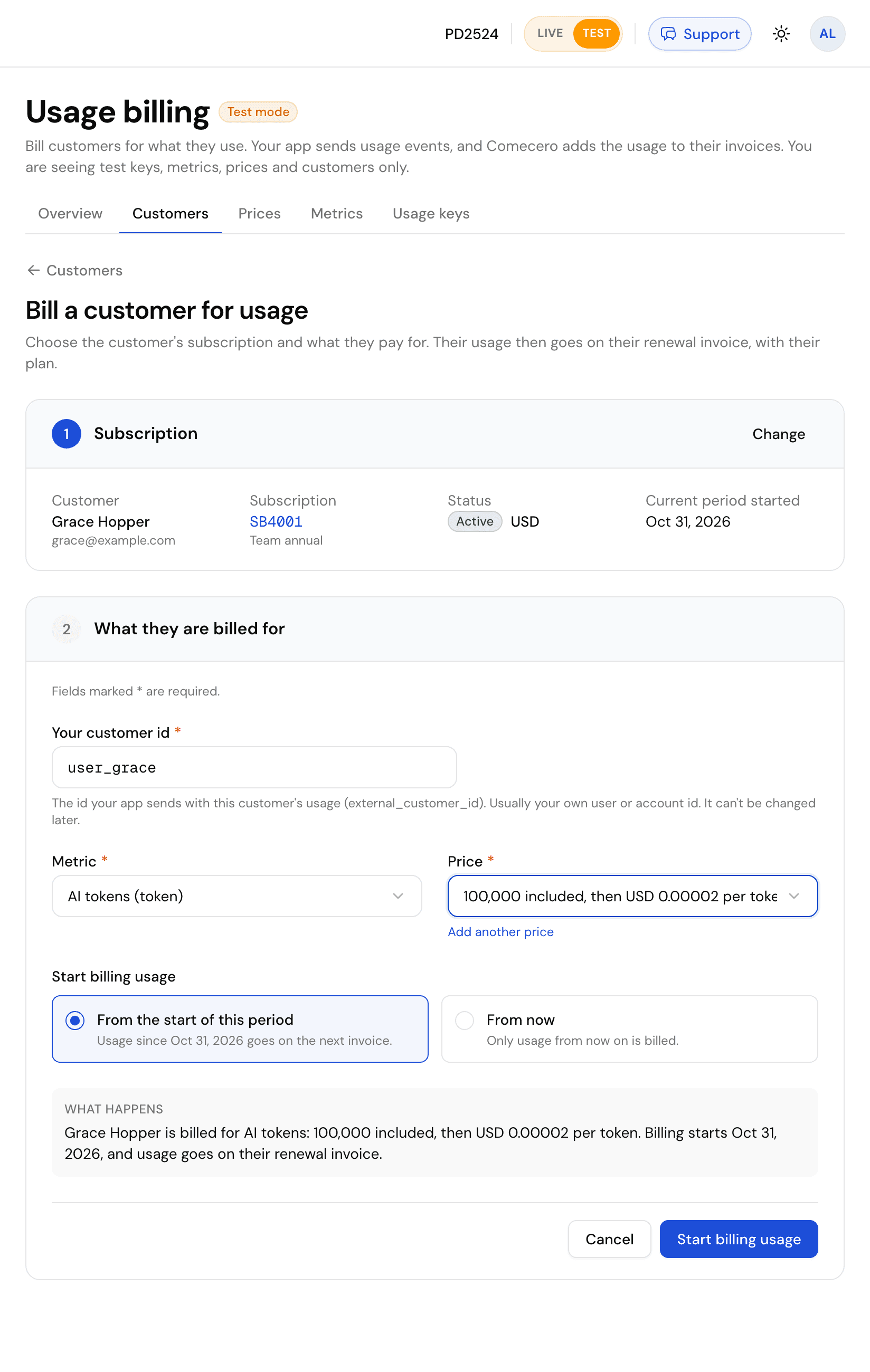
| Field | What to enter |
|---|---|
| Your customer id | The id your app sends with this customer's usage, as external_customer_id. Usually your own user or account id, such as user_8342. Never an email. It can't be changed later. |
| Metric | What they pay for. |
| Price | Only prices in the subscription's currency are listed. Add another price opens the price form. |
| Start billing usage | From the start of this period also bills usage since the current period began. From now bills only usage from now on. |
What happens sums it up in one sentence. Click Start billing usage. To bill the same customer for a second metric, open them and click Bill another metric.
The usage meter counts events for any customer id, but only bills ids that match a customer here. If your app sends a different id, the usage is counted and never billed. Copy the id exactly.
Create a usage key
Your app sends usage with a usage key. Open Usage keys, enter a Name such as "Production app", and click Create key.
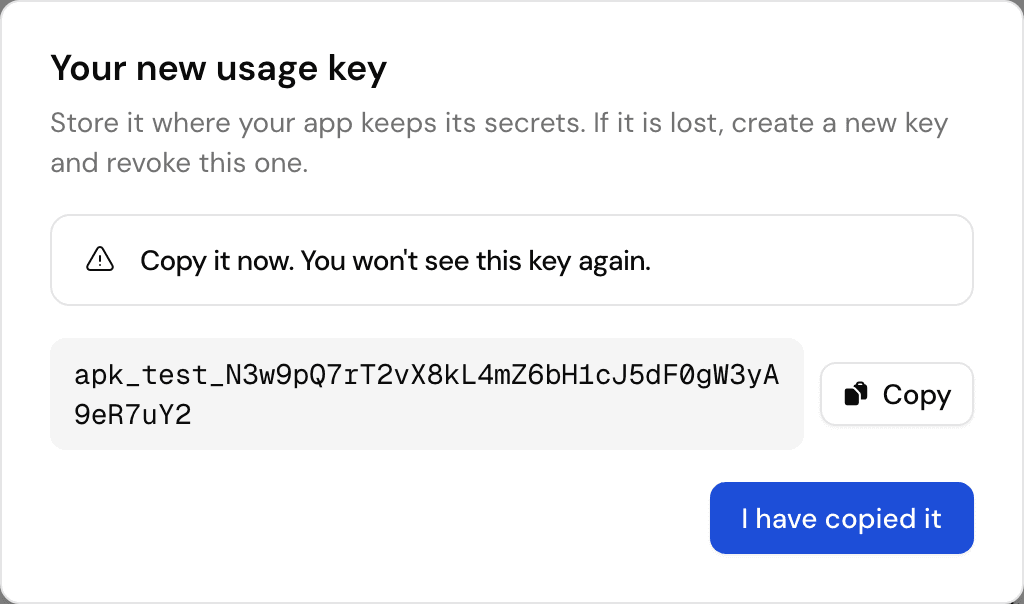
The key starts with apk_test_ in test mode and apk_live_ in live mode. It is shown only once. Copy it into the place your app keeps its secrets, then click I have copied it. If it is ever lost, create a new key and revoke the old one.
A new key shows Activating for a few minutes, then Active. Revoke stops a key. A revoked key can still send usage for a few minutes while the change reaches the usage meter.
Send usage from your app
This step is for whoever builds your app. The Send usage events card on the Overview and Usage keys tabs has the address and a request to copy:
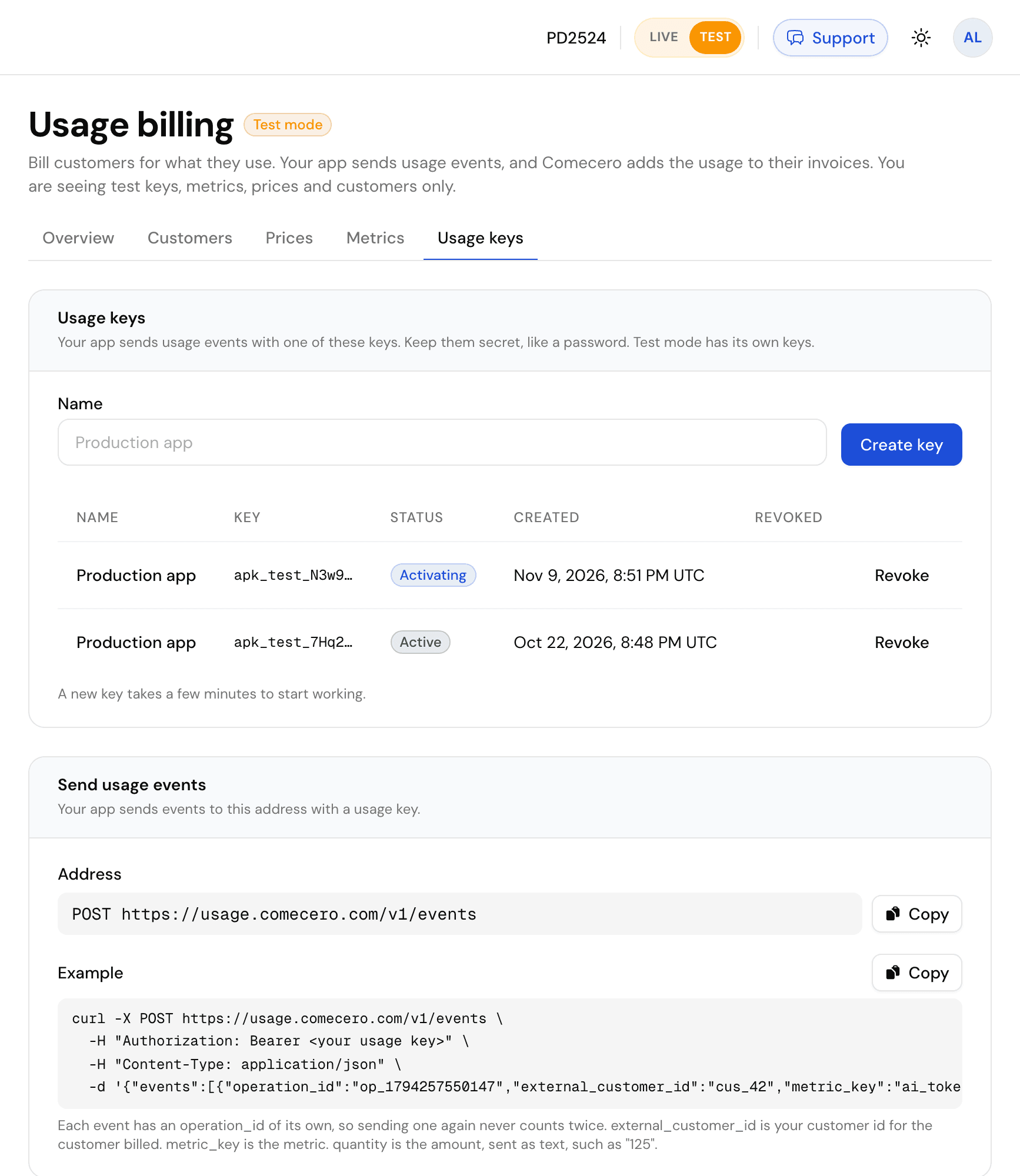
Paste the example in a terminal with your test key in place of <your usage key>, and the event is counted. Each event needs four values:
operation_id: a new id for each piece of usage. Sending the same one again never counts twice.external_customer_id: the Your customer id you entered for the customer.metric_key: the metric's Metric key.quantity: how much was used, as text, such as"125".
For the code, see Send usage or the Bill for API calls tutorial.
Check that usage arrives
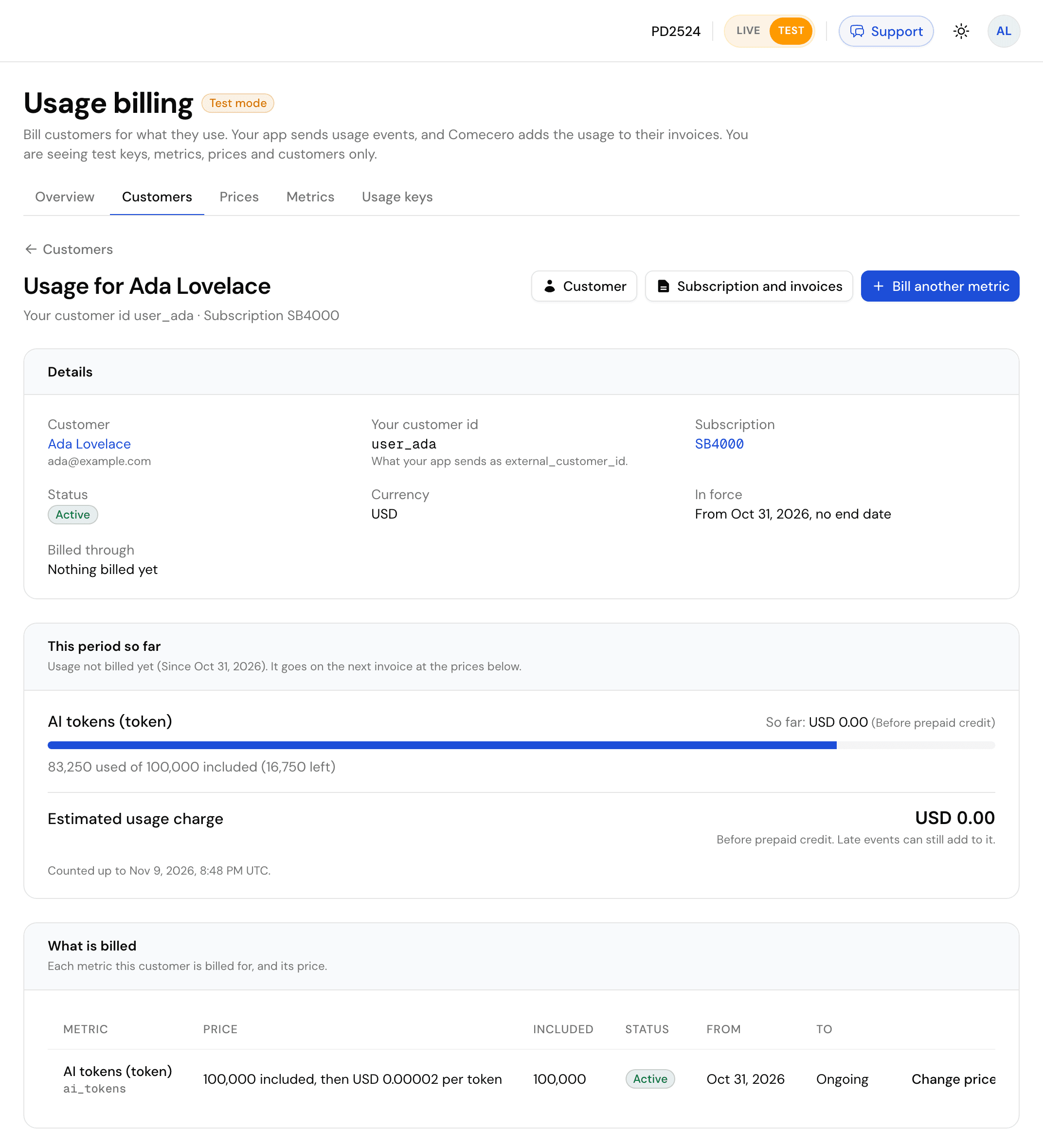
Open Customers and click the customer. Their page shows:
- This period so far: usage not billed yet, against what is included, and the Estimated usage charge. It can be a few minutes behind.
- What is billed: each metric and its price. Change price moves them to another price. Usage not billed yet is billed at the new price.
- Prepaid credit: the balance and Add credit, when the customer has a credit balance. See Credits and burndown.
- Billing runs: each period that was billed, with its invoice.
- Usage: a chart for the last 24 hours, 7, 30 or 90 days.
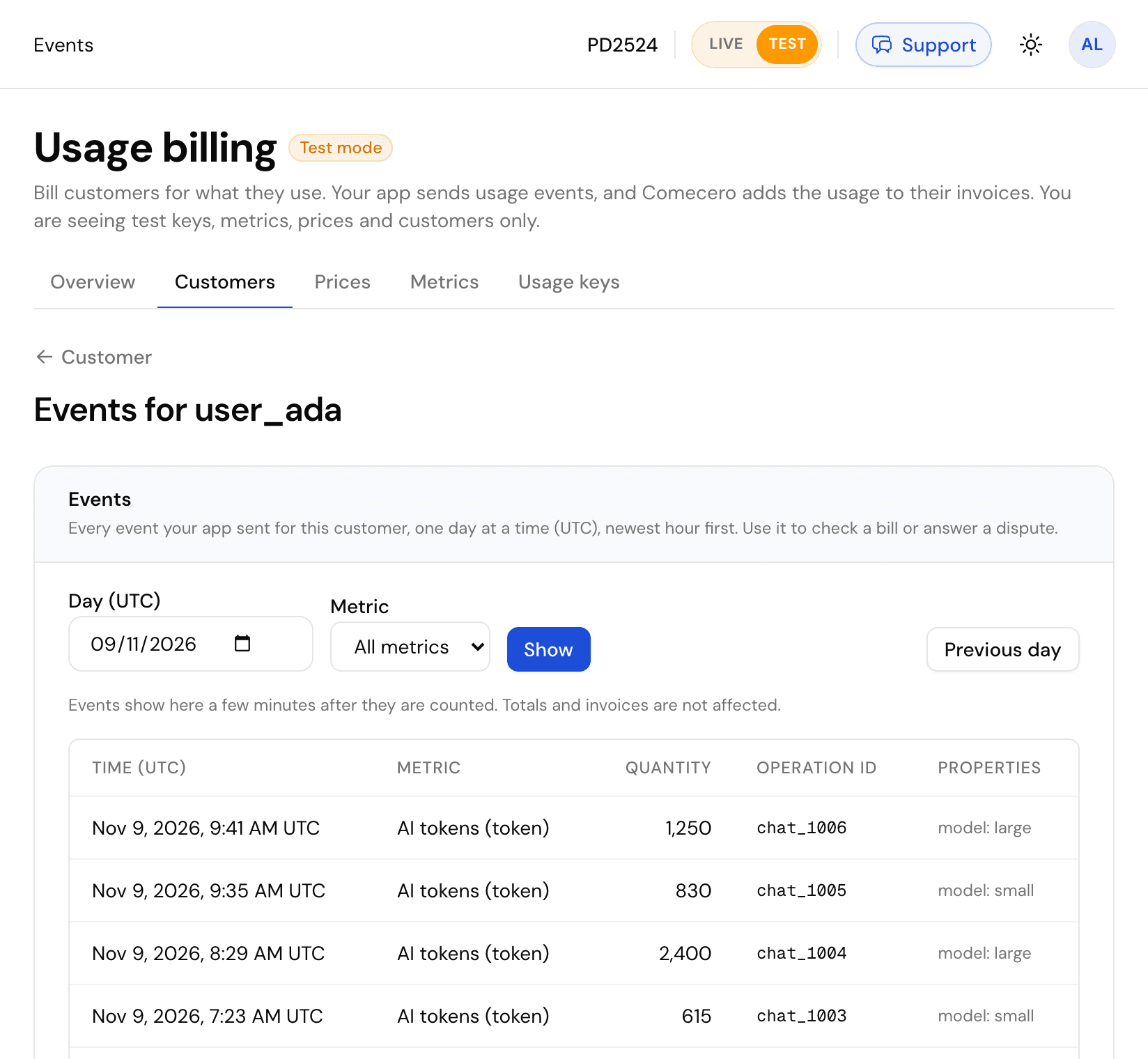
Click View events to see every event your app sent for the customer, one UTC day at a time. Events show here a few minutes after they are counted. Use it to check that your app sends the right ids, or to answer a question about a bill.
What happens at renewal
When the subscription renews, Comecero adds up the period's usage, takes off what is included, prices the rest and puts it on the renewal invoice. You don't need to do anything. Customer, subscription and invoice pages in the dashboard also have a Usage billing card with Open usage.
Sometimes a bill is held instead. The Overview tab then shows it under Needs your attention, and the customer is not charged for it until it is sorted out:
| Shown as | What to do |
|---|---|
| Being checked by Comecero | The bill is above the review limit. Comecero checks it with you, then releases it. |
| Waiting for credit | The customer used more than their prepaid credit, and their plan stops at the credit. Add credit, then click Bill it again under Billing runs. |
| Price in another currency | A price is not in the subscription's currency. Use Change price to pick one that is, then Bill it again. |
| Price or metric missing | Bill them with an existing metric and price, then Bill it again. |
Usage too small to invoice on its own waits under Waiting for the next invoice. See How usage is billed for every case.
Go live
Turn Test off and do the same steps in live mode: add the metric, the price, bill each customer and create a live key. Test and live never mix. A test key can't send live usage, and test usage is never billed to a live customer.