

Account and test mode
Sign up for Comecero, keep test and live tokens and data apart, test payments with test cards for success and decline, and get ready to go live.
This page shows you how to open an account, work safely in test mode, test every payment result with test cards, and switch to live when your integration works.
Sign up
Create an account with your name, email and a password. No contract or card is needed to start. Your account comes with both modes ready:
- Test mode works at once, with a built-in test gateway for card payments.
- Live mode takes real payments once your account is set up to get paid (see Go live).
Test and live mode
Every account holds two separate sets of data. The token you call with decides which one you use:
| Test | Live | |
|---|---|---|
| Token starts with | secret.test., trusted.test., limited.test. | secret.live., trusted.live., limited.live. |
| Sees | Only test data | Only live data |
| Payments | Go to a test gateway. No money moves. | Go to your real gateway |
| Ids | Test products get .test added to their id | Plain ids |
There is no test header and no separate test URL. Both modes use https://api.comecero.com/api/v1. Settings, products, customers, gateways and webhook subscriptions are kept per mode, so you set them up once in test and again in live.
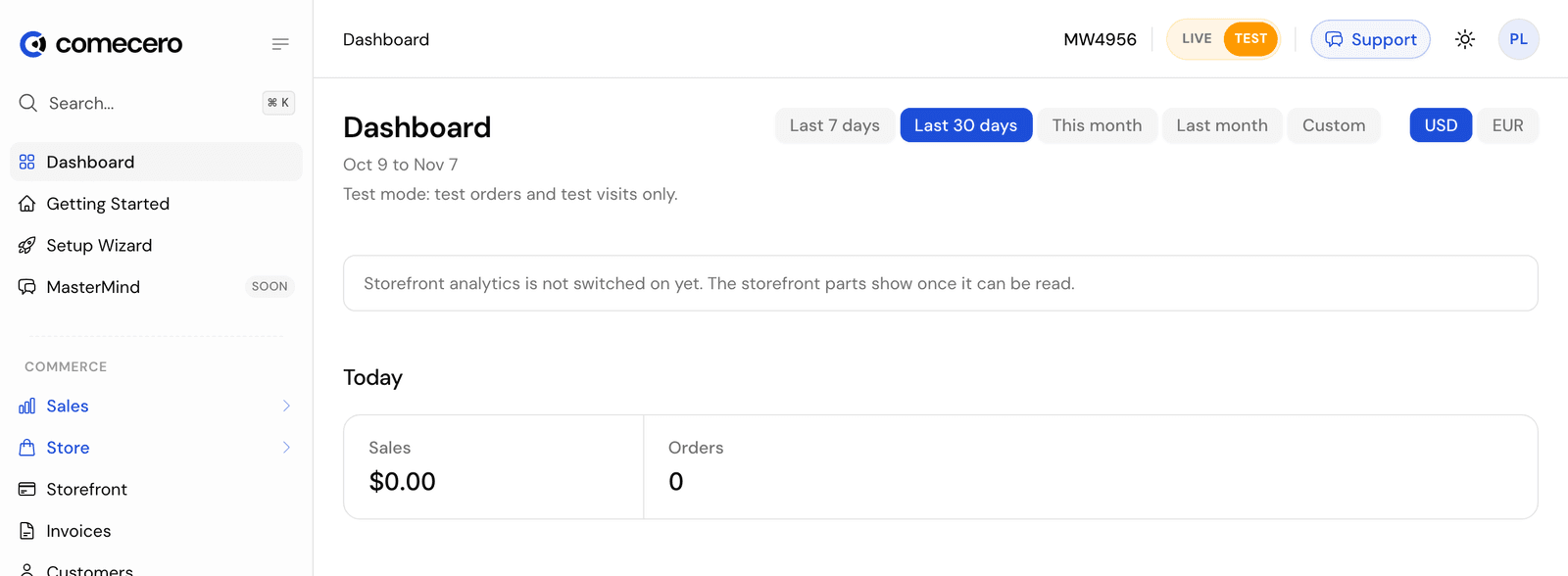
In the dashboard, the Live/Test switch in the header picks the mode you see and edit.
Get a test token
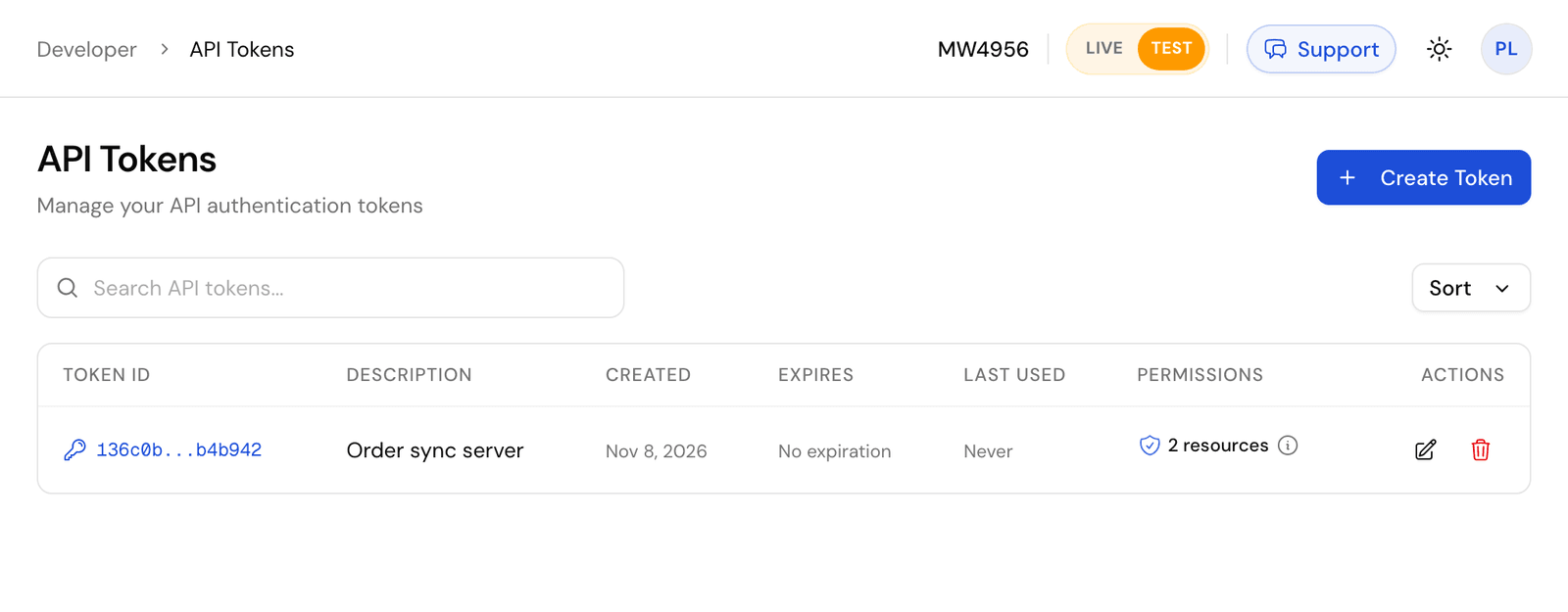
- Secret token (for your server): with Test on, go to Developer > API Tokens, click Create Token and choose Secret. The token takes the mode of the switch. You can also call Create a secret token with
test=true. - Limited token (for a shopper's browser): call Create a limited token with your
account_idandtest=true, and noAuthorizationheader. The Hello World tutorial does this from a web page.
A limited test token without a token in the request works only while Allow Public Test Orders is on, under Settings > Technical (edit it in live mode). New accounts have it on. When it is off, the call returns 403, and only signed-in users of your account can place test orders.
Test cards
The built-in test gateway accepts only the card numbers below. Any other number, including real cards and other providers' test numbers such as 4111111111111111, returns 400. Use any future expiry date and any security code, such as 123.
Successful payments
| Card number | Brand |
|---|---|
4444555566661111 | Visa |
5555666677771111 | Mastercard |
6011222233331119 | Discover |
372566667777114 | American Express |
Declines and errors
| Card number | Result |
|---|---|
4444555566669999 | Declined: 402, code payment_declined |
5555666677779999 | Declined (Mastercard): 402, code payment_declined |
6011222233339997 | Declined (Discover): 402, code payment_declined |
372566667777999 | Declined (American Express): 402, code payment_declined |
4444555566669916 | Address check fails: 402, code invalid_avs |
4444555566669932 | Security code check fails: 402, code invalid_cvv |
4444555566669957 | The bank does not answer in time: 504, code bank_network_timeout |
4444555566669965 | The bank network has an error: 502, code bank_network_error |
4444555566669973 | Blocked by fraud screening, when fraud screening is on: 402, code payment_declined |
A declined payment returns the failed payment in error.meta.payment, so you can show the reason and let the shopper try another card. The address and security code cards fail only on a shopper's payment, not on a subscription renewal.
Cards for later steps
These cards pay at first and fail at a later step, so you can test what your code does then:
| Card number | Result |
|---|---|
4444555566661129 | Authorizes, then the capture fails |
4444555566661137 | The first payment succeeds. Later payments with the saved card, such as subscription renewals, are declined |
4444555566661145 | Pays, then a void fails |
4444555566661152 | Pays, then a refund fails |
These cards work with the built-in test gateway. If you add a test gateway of your own payment provider, use that provider's test cards instead.
Go live
Work through this list before you switch your code to live tokens:
- Choose how you get paid. In the dashboard, finish the "How do you want to get paid?" step: set up Comecero Express Payments, connect and turn on your own gateway (and run a test payment through it), or apply to sell through Comecero. Then review your fees and sign. Live payments work once your account is live.
- Recreate your setup in live mode. Switch the dashboard to Live and add your products, shipping methods, tax settings and gateway again. Test data never moves to live, and a test product cannot go in a live cart.
- Create live tokens. Make a live secret token for your server. Create live limited tokens for shoppers without
test=true. - Add live webhooks. Webhook subscriptions are kept per mode. Create them again in live mode and set
active: true. See webhooks. - Allow your site's origin. If your browser code runs on your own domain, add it under Settings > Technical > CORS Allowed Origins. See CORS.
- Keep secrets on the server. Make sure no secret token is in your web pages, apps or code repository.
- Run one real payment. Buy one of your products with a real card, check the order and the webhooks, then refund it.
Quickstart
Go from a new account to a paid test order with curl in about 5 minutes. Create a test token, a product and a cart, then pay with a test card.
Basic setup
Get your account ready to sell, step by step. Company details, products, currencies, tax, shipping, gateways, customer emails, your shop's look and your team.