

Checkout button on your website
Add a Buy button to any website with one script tag. Checkout opens over your page, takes the payment, and tells your page when the order is paid.
The checkout button lets you sell from a website you already have, with no shop to build. You paste one script and add a button. When a shopper clicks it, the Comecero checkout opens over your page, takes the payment and closes again.
It is part of your storefront, so it uses the same products, prices, gateways and checkout settings as your shop.
How it works
- Your page loads
popup.jsfrom your shop's address. - A shopper clicks an element with the class
popup-buy-now. - On a computer or tablet, the checkout opens in a window over your page. On a phone it opens in a new tab.
- When the shopper pays or closes the checkout, your page gets a callback with the cart and, if they paid, the order.
Set it up
Allow your website
The checkout only opens on websites you allow. In the dashboard, open Storefront and, in the editor, the Pop checkout group. Add your site's host to Websites that may open the pop checkout, for example www.example.com.
- Only the host is compared, not
httporhttpsor the path. www.example.comandexample.comare two different hosts. Add both if you use both.*.example.comallows every subdomain ofexample.com, but notexample.comitself.
On a site that is not allowed, the checkout does not open and the page shows an alert that says to add the host.
Copy your script address
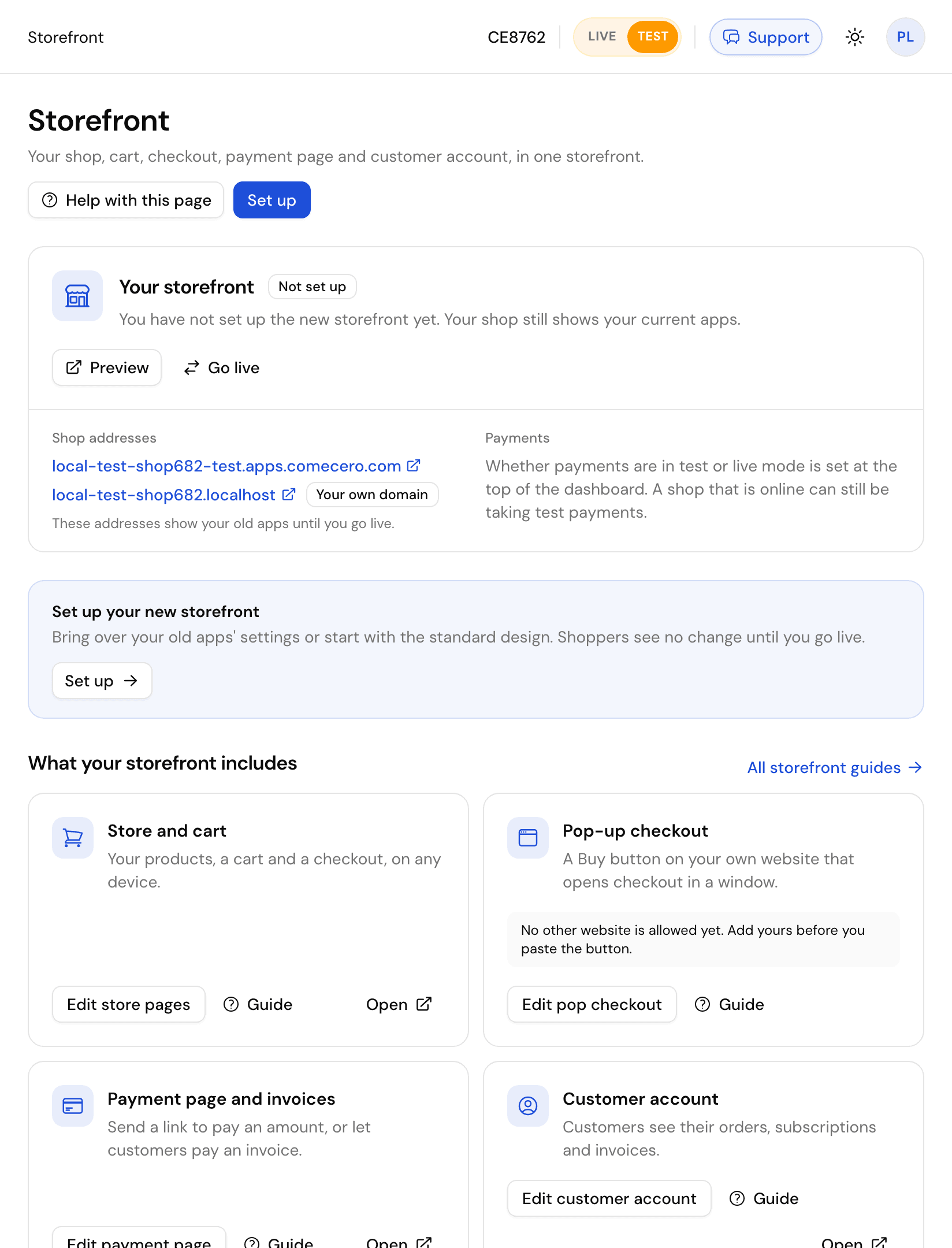
Open Storefront in the dashboard. Under Links and installation, Pop-up checkout shows the code to paste, with your shop's address filled in. The script is always /popup.js on your shop's address, for example https://your-shop.apps.comecero.com/popup.js.
Add the button and the script
Put the script just above </body>. It must have id="_popup_script", or it does nothing and logs a warning in the browser console.
<button class="popup-buy-now" data-product_id="pdf-pro" data-quantity="1">
  Buy now
</button>

<script src="https://your-shop.apps.comecero.com/popup.js" id="_popup_script"></script>
Any element can be the button: a <button>, a link or an image. A click before the script has finished loading is not lost: the checkout opens as soon as it is ready.
What the button can send
Every data- attribute on the button goes into the cart.
| Attribute | What it does |
|---|---|
data-product_id | The product to sell. Required unless you send data-cart |
data-quantity | How many, from 1 to 9999. Default 1 |
data-name, data-email | Fill in the shopper's name and email |
data-currency | A 3-letter currency, for example EUR. Without it, the currency comes from the shopper's location |
data-promotion_code | A promotion code to apply |
data-meta-<key> | Your own data, saved in the cart's and order's meta, for example data-meta-campaign="spring" |
data-cart | A whole cart as JSON, for more than one product. When it is there, the other attributes are ignored |
Other data- attributes also go into the cart as fields, so keep attributes from other libraries (such as data-toggle) off the button.
<button class="popup-buy-now"
  data-cart='{"items":[{"product_id":"pdf-pro","quantity":1},{"product_id":"support-plan","quantity":1}],"currency":"USD"}'>
  Buy the bundle
</button>
Know when the order is paid
Set the callbacks on window._popup before the script loads. onClose gets the order when the shopper paid, and null when they closed the checkout without paying.
<script>
  window._popup = {
    onReady: function () {
      // The script is ready. Runs once per page.
    },
    onLoad: function (data) {
      // The checkout opened. data.cart is the cart.
    },
    onClose: function (data) {
      if (data.order) {
        // Paid. Thank the shopper, unlock content, track the sale.
        console.log('Order ' + data.order.order_id);
      }
    }
  };
</script>
<script src="https://your-shop.apps.comecero.com/popup.js" id="_popup_script"></script>order:created webhook on your server, or get the order with a secret token.Open it from your own code
After onReady, you can open the checkout yourself with _popup.open(cart). On phones, call it inside a click handler, or the browser blocks the new tab.
document.querySelector('#upgrade').addEventListener('click', function () {
  _popup.open({ items: [{ product_id: 'pdf-pro', quantity: 1 }], currency: 'USD' });
});
Script options
Add these to the <script> tag:
| Attribute | What it does |
|---|---|
data-language | The checkout language, for example fr |
data-as-modal | true or false. Whether the checkout opens over your page |
data-self-init | Do not start by itself. Call _popup.initialize(callback) when you are ready |
data-debug | true logs what the script does. Also needed to test the script from a page on localhost over plain http |
Test it
Test mode comes from the shop address, not from the button. Use your test shop's address in the script (it usually ends in -test, such as your-shop-test.apps.comecero.com) and pay with a test card such as 4444555566661111. The checkout shows a Test mode badge. Switch the script to your live shop's address when you go live.
Good to know
- Wallets and redirects. PayPal and other payments that leave for the provider's page take the whole page there and back. Keep
popup.json the page that opened the checkout: when the shopper comes back, the script opens the checkout again to finish. - Content Security Policy. If your site sends a CSP header, allow your shop's address in
frame-srcandconnect-src, and the script itself inscript-src. - Escape closes the checkout, except while a payment is running.
- Receipts. The shopper can download the receipt PDF from the last step.
Integrations
The ways to sell with Comecero, from a Buy button on your own site to a full hosted shop or your own code on the API, plus gateways and fraud screening.
Hosted shop and payment links
Your ready-made Comecero shop, its page addresses, and links you can build to fill a cart, ask for a payment of any amount or get an invoice paid.